Competitors & brands
Manage your own brand and your competitors, and the names and domains we look for to recognize them in AI answers.
Overview
Every brand is defined by the names and domains it goes by. When one of them shows up in an AI answer, that counts as a mention of the brand, and that is what drives your Share of Voice.
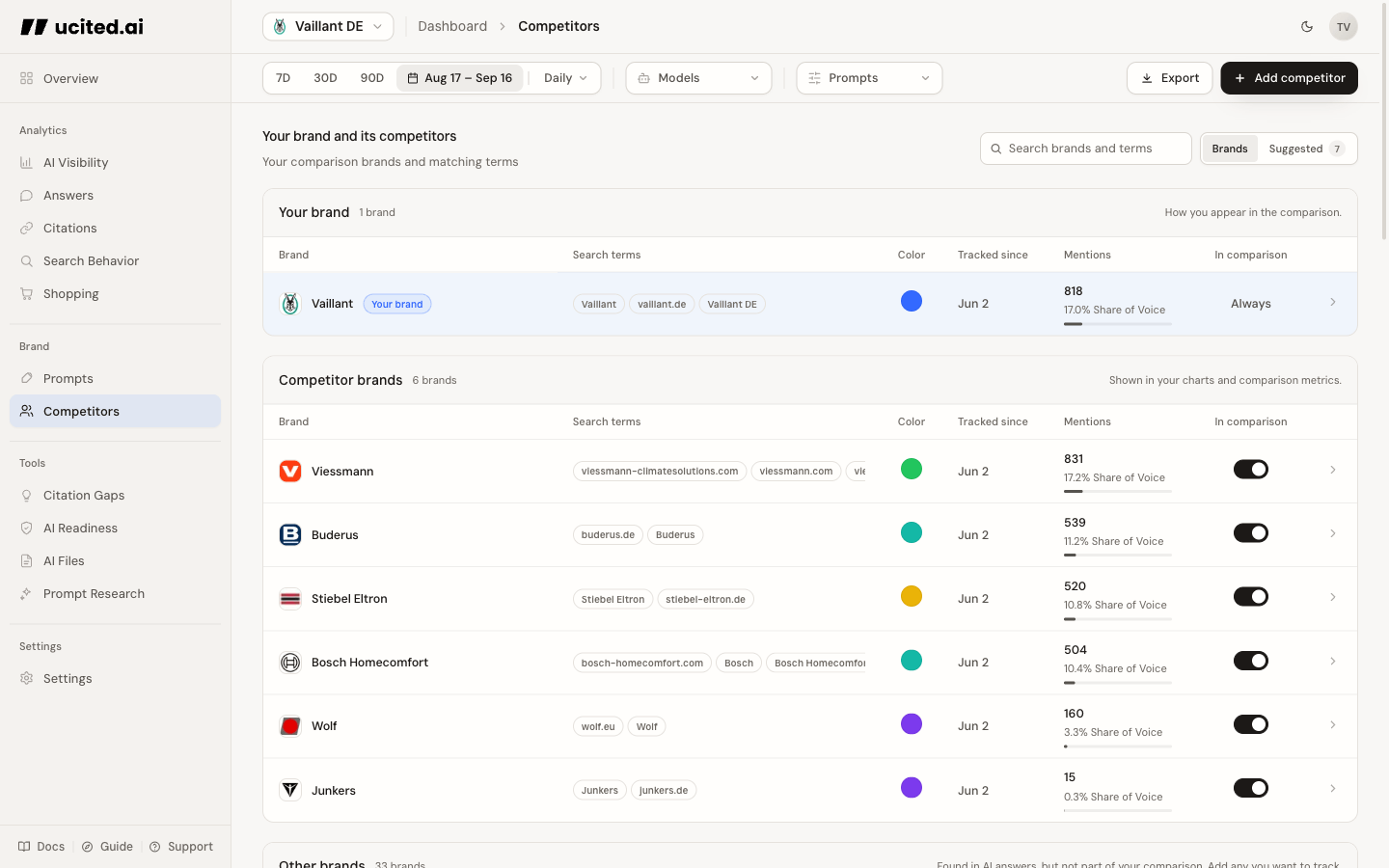
Open Competitors in the sidebar. Your own brand sits at the top, followed by your direct competitors (sorted by Share of Voice) and other tracked brands.
Add a competitor
Click „Add competitor“ in the top right, enter the name (e.g. „Acme“) and confirm. The brand is created with that name already on its list, so it can be detected right away.
New brands are proposed from your AI answers and recurring discovery runs. Anything not yet tracked automatically waits under Suggested for your review.
Review Suggested
Each proposal shows its evidence: daily mention bars for the review window, the number of days and mentions, and matching answer snippets. Click Add to tracking to accept the brand, or Dismiss to reject it.
A proposal has no effect on any metric until you accept it with Add to tracking.
Manage names and domains
Expand a brand with the chevron to view and edit the names and domains we look for:
- Add — Enter another name or domain the brand appears as (e.g. „acme.com“ or a spelling variant). The type (name or domain) is detected automatically.
- Remove — Drop one that does not fit. This is reversible and simply hides it from the metrics.
A brand can go by several names and domains (e.g. „Morefire“, „more fire“, „more-fire.com“). All active ones feed into Share of Voice together.
In comparison & color
To the right of each brand you control how it appears in your analytics:
- In comparison (switch) — Turn it on to include a brand in your comparison charts. Brands without the switch still count toward your overall Share of Voice, but stay out of the curated comparisons.
- Color — Brands in the comparison get a chart color. Click the color dot in the brand row to open the system color picker.
Hiding brands and terms
Detection sometimes surfaces junk (e.g. „Google Ads“ or generic terms). Hover the row and click Hide to exclude a brand from detection and Share of Voice. Individual search terms can be hidden too: click a term chip and choose Hide from detection and SOV. Hidden terms stay visible on their brand card as muted chips, and each term can also be assigned to another brand from the same menu — its whole measurement history moves with it.
Nothing is deleted. Hidden brands keep all their terms and collect under Hidden brands at the bottom of the catalogue; Show brand brings one back anytime.
Your own brand
Your brand always sits at the top (with the „Your brand“ label). Its Search Terms — names and domains — are the foundation for detecting it in AI answers. The expanded area also shows the brand profile directly as an editable form:
- Display name — The name your client is shown under in the dashboard.
- Website — One primary website for search and citation checks. Old additional domains only appear as removable legacy chips.
- Description & industry — A short profile of your brand and its market. It helps us tell real competitors from unrelated mentions and shape better prompts.
Start with 3–5 direct competitors in the comparison and enrich each one with the real spelling variants and domains it goes by. After a few weeks, review the Share-of-Voice list and add relevant brands you discover there.