Clients & Workspaces
Manage multiple clients in one account — ideal for agencies and companies with multiple brands.
What Are Clients?
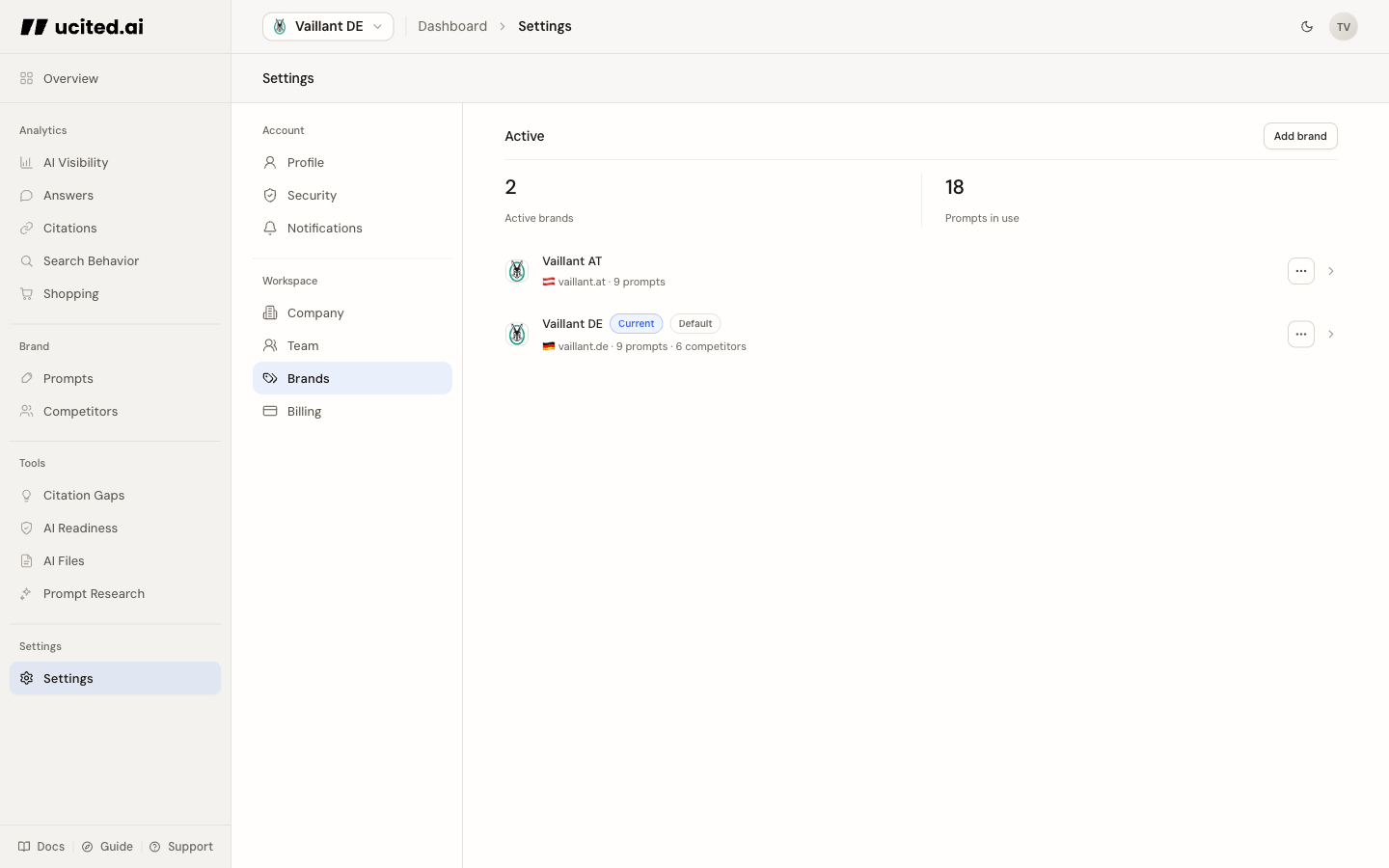
A client in ucited.ai is exactly one brand, with or without a primary website. It has a brand profile, the Search Terms used to detect it in AI answers, its own prompts, a curated brand catalogue, and separate dashboards.
The multi-client model is particularly useful for:
- Agencies — Manage AI visibility for multiple customers in one account
- Multi-brand companies — Track different brands or business areas separately
- International companies — Create separate clients for different markets or countries
Creating a New Client
The Clients page is the central place for client management:
- Open Clients in the sidebar
- Click Add client
- Enter the brand’s website. No website? You can enter the details by hand instead
- Let AI scan the website and draft a brand profile
- Review and edit the brand name, description, industry, market, and language on the review card
- Confirm the suggested Areas and then optionally select the prompts you want to track
Data collection starts after you finish if at least one prompt exists. Some newly discovered competitors are activated automatically; others wait under Suggested with their evidence for your review.
How many clients can be active at once depends on your plan: 1 on the trial, 3 on Essential, 5 on Professional, 10 on Business. The number of prompts is unlimited. Every scheduled run across every client draws from the same monthly credit pool.
Switching Between Clients
You can switch between your clients at any time:
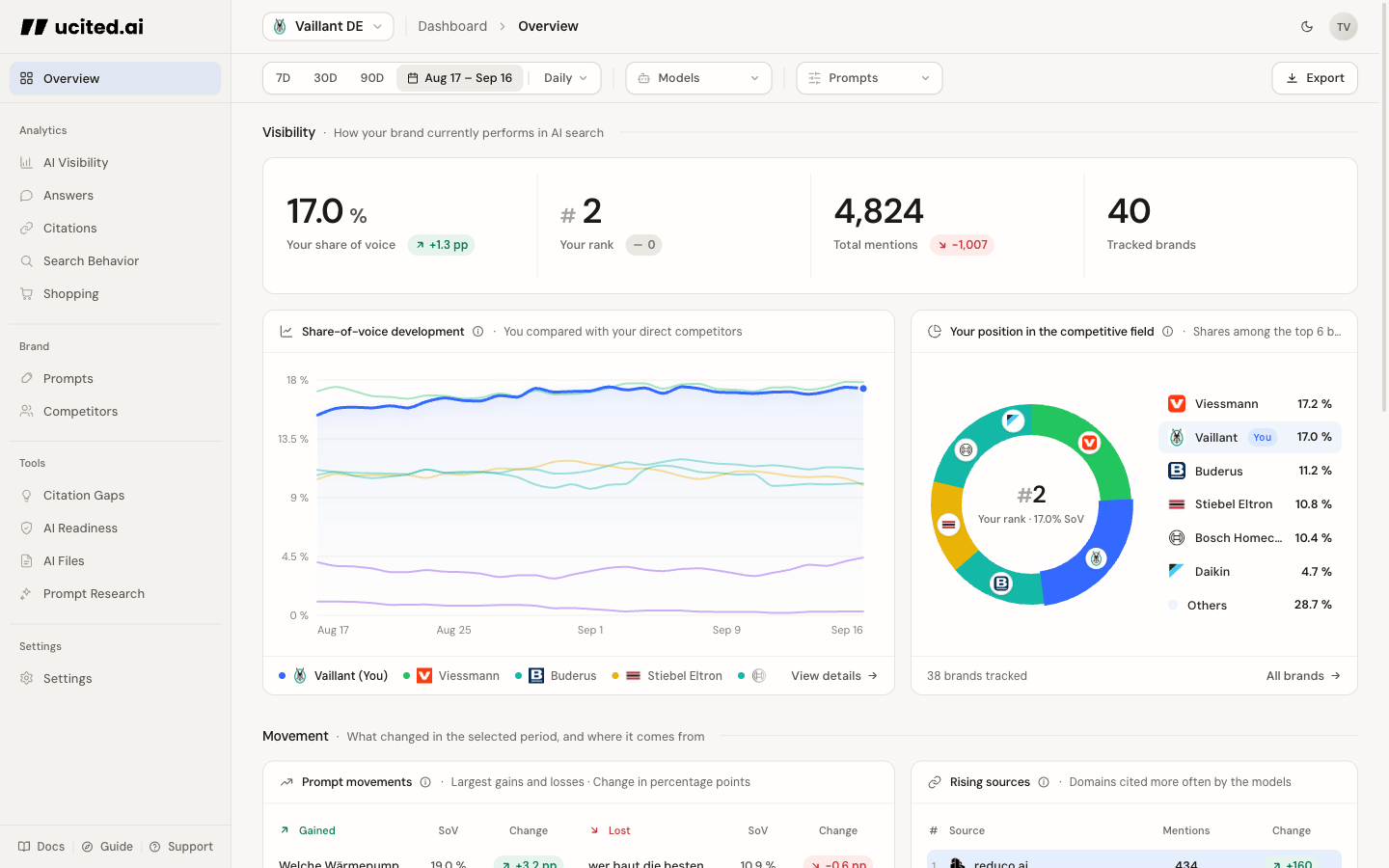
- Open the Client selector in the top bar
- Click on the desired client
- The dashboard automatically updates with the selected client’s data
Credit Usage Across Clients
An important point for multi-client usage: the credit pool of your plan is shared across all clients combined:
- There is no per-client prompt cap — add as many prompts as you want for each client
- Client A’s scheduled runs and Client B’s draw from the same monthly credit pool
- You can see the total current spend on the Prompts and Billing pages
Plan your credit budget across clients in advance. With many clients running frequent schedules, it may make sense to upgrade to a plan with a larger allowance.
Client Settings
Expand a card to review and edit the brand’s data directly:
- Brand profile — Display name, one primary website, description, and industry are visible as editable fields. Old additional domains only appear as removable legacy chips.
- Search Terms — These names and domains are matched against AI answers. They are the tracking foundation used to recognize mentions of your brand.
- Client actions — Switch to the client, make it the default, open Prompts or Competitors, and deactivate or reactivate it.
Roles and Permissions
Within an account, there are different roles:
- Owner — Full access to all settings, billing, and client management.
- Admin — Can manage clients, prompts, and competitors. No access to billing.
- User — Read access to the dashboard and data. Cannot modify settings.