Dashboard Overview
Your central hub for all AI visibility data — Overview, Analytics, Configuration, and Tools.
The dashboard as your starting point
When you log in to ucited.ai, you land directly on the Overview dashboard. It is the cockpit for your most important signals: hero KPIs, at-a-glance cards, and recent AI answers. Detailed analysis lives in the dedicated sidebar areas.
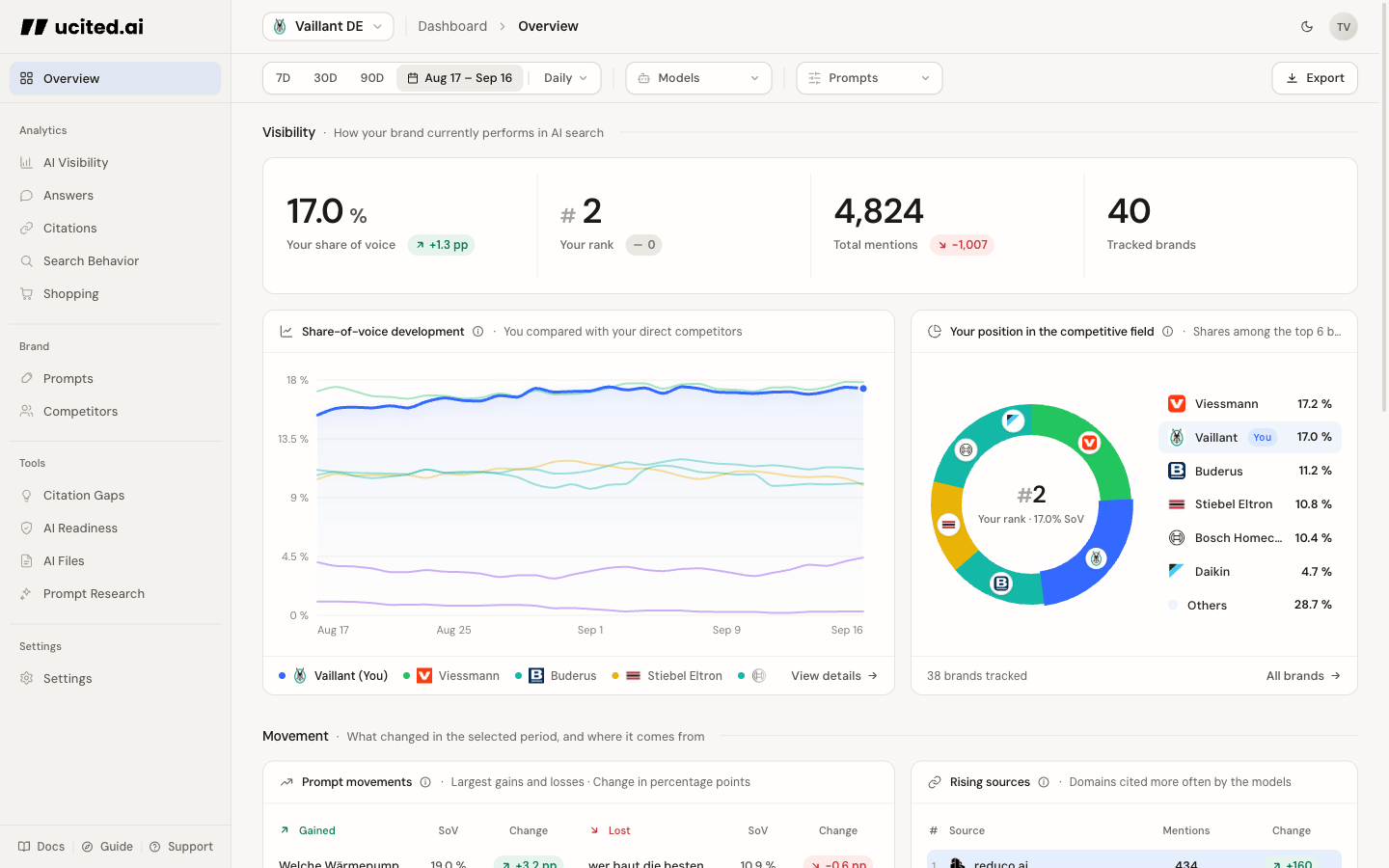
Sidebar navigation
The sidebar on the left is your main navigation element. It is organized into several sections:
- Analytics — Share of Voice, Citations, Answers, Search Behavior, and Shopping
- Configuration — Clients, competitors, and prompts
- Tools — Prompt Research, Citation Gaps, AI Readiness, and AI Files
- Settings — Account, team, company, and billing
Toolbar: Filters and controls
At the top of the dashboard and supported analytics pages, the toolbar provides the main filter options:
- Date range filter — choose the analysis period.
- Model filter — filter supported views by the available models.
- Prompt filter — narrow supported views to specific topics, keywords, or individual prompts.
What you see in Overview
The Overview page is intentionally compact. It gives you the core signals for quick orientation:
- Total Mentions — how often brands were detected in the filtered AI answers, whether named in the text or referenced through one of their domains.
- Share of Voice — your percentage share of all detected brand mentions in the selected period.
- Market Leader — the brand with the highest SOV in the current market and filter context.
- Top Citation Domains — sources AI models link to or reference most often.
- Search Queries — real web search queries models triggered while generating answers.
- Previous Answers — recent LLM answers where you can inspect context, citations, search behavior, and shopping signals.
Use Overview for orientation. For concrete work, move into Analytics or Tools pages such as Share of Voice, Citations, Search Behavior, Shopping, or Citation Gaps.
Explore the metrics
Share of Voice
The key metric for your market share in AI responses.
Answers
Read the real AI answers behind your metrics.
Citations
Check cited URLs, domains, and source signals.
Search Behavior
Understand web search queries and follow-up questions.
Shopping
Analyze how your brand and products show up in shopping answers from ChatGPT and Copilot.