Managing Prompts
Add prompts, organize them by topics and tags/keywords, and keep track of your credit budget.
What Are Prompts?
Prompts are the questions and search queries that ucited.ai regularly sends to AI models to measure your visibility. Each prompt simulates a typical user query — for example, “What is the best heat pump for a family home?” or “Best CRM software for small businesses.”
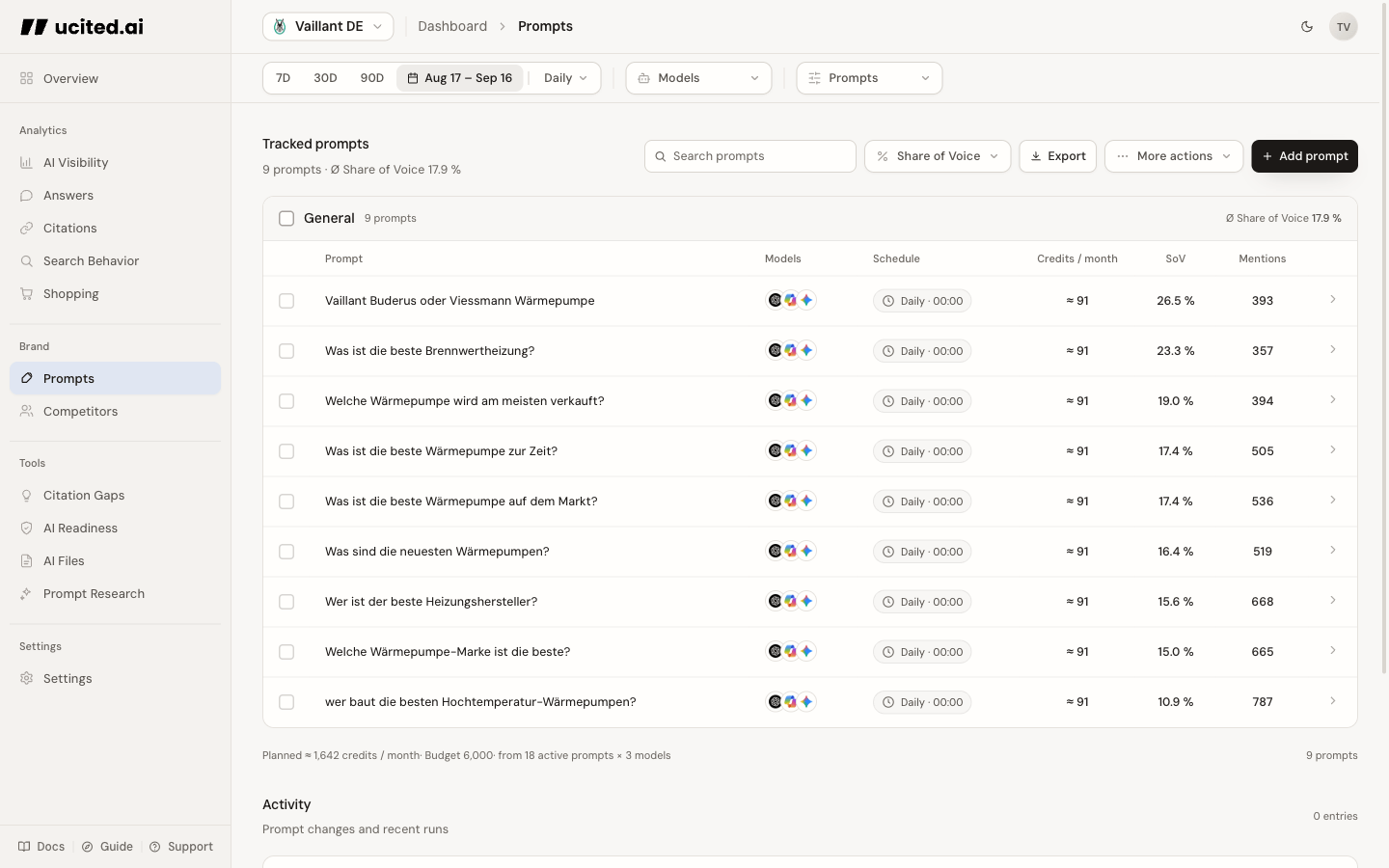
You can find prompt management under Prompts in the dashboard sidebar.
Topics and Tags/Keywords
Prompts are no longer managed only as a flat list. You can structure them with topics and tags/keywords so analysis and filtering stay cleaner later:
- Topics group larger areas, such as “Heat Pumps,” “Boilers,” or “Installation Cost.”
- Tags/keywords describe the search intent or core term behind a prompt.
- Prompt filters in the dashboard can use this structure to analyze SOV, citations, and search behavior more precisely.
A clean topic and tag structure makes it clear whether you are visible only for single prompts or across an entire topic cluster.
Adding a Prompt
To add a new prompt:
- Click the “Add prompt” button
- Enter the question you want to track
- After adding it, assign topic and keyword chips if you want clean clustering
- Confirm your entry
The new prompt will be included in the next data collection cycle. It may take a few hours before initial data is available.
Formulate prompts the way real users would ask AI models:
- Use natural language, not keywords
- Be specific: “Best CRM software for startups 2024” instead of “CRM software”
- Cover different question types: comparisons, recommendations, information queries
- Formulate in your target audience’s language
Bulk Import and Prompt Research
You do not have to add prompts manually one by one. For larger setups, there are two faster paths:
- Bulk Import — paste multiple prompts at once and organize them afterward.
- Prompt Research — generate new prompt suggestions based on your brand, website, and audience.
Deactivating a Prompt
When a prompt is no longer relevant or you want to reduce your credit spend, you can deactivate it:
- Click the Deactivate button next to the prompt
- The prompt stops running, so it no longer draws from your credit budget
- Existing historical data is preserved
Deactivated prompts are not deleted — you can reactivate them at any time. Historical data remains available in your analysis.
Models and schedule per prompt
For each prompt, choose available models and set each model to daily, weekly, monthly or manual. Time and weekday or day of the month can be set per model; the timezone is shared by the prompt. The model filter in the analytics top bar does not change this schedule.
Credits, Not Prompt Limits
There is no cap on active prompts — add as many as you want, across all your clients. What varies by plan is your monthly credit allowance: one shared pool that every scheduled run (per prompt, per model) and every on-demand tool draws from. You can see your available credits and this period’s spend at the top of the Prompts page.
When your credits run out, scheduled runs and tool launches pause until your next billing period brings new plan credits. Unused plan credits roll over, up to one monthly allowance. With an active paid plan in good billing standing, you can buy a one-time top-up: top-up credits never expire. Nothing is deleted; your prompts and history stay exactly as they are.
Viewing Prompt Performance
In addition to management, the Prompts page also shows you the performance of each prompt. With topic, keyword, and prompt filters, you can later inspect exactly where visibility is created:
- Your brand’s Share of Voice for this prompt
- Mentions of all tracked brands for this prompt
- Your brand’s Rank by mention count
Regularly review the performance of your prompts. Deactivate prompts with consistently low data volume and replace them with more relevant questions — use the Prompt Research tool for this.
Change Log
At the bottom of the page, you will find the Change Log (Event Timeline). It records all changes to your prompts — when they were added, activated, or deactivated. This helps you correlate changes in your SOV data with prompt modifications.